
.jpg)


.jpg)


Printer Not Printing? 8 Things to Check First
Your printer shows offline or simply will not print? Try these 8 easy checks before you call for repair. Most printer problems in an office have a simple cause.
You press Print, and nothing comes out. It always seems to happen right before a meeting or a submission. The good news is that many printer problems have a simple cause and take only a few minutes to fix. Go through these checks in order before you call a technician.
1. Turn everything off and on again
It sounds too simple, but it fixes many cases. Turn the printer off, wait about a minute, and turn it on again. Restart your computer too. Then try printing one page.
2. Check the cable or the Wi-Fi
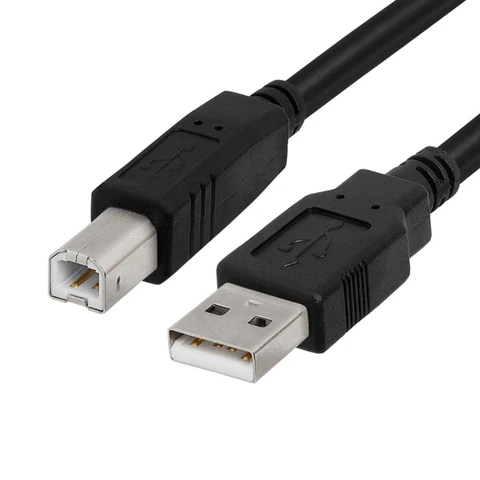
If you use a USB cable, push it in firmly at both ends, and try another USB port on the computer. A damaged cable can also cause random errors. If it looks bent or worn, try a new printer cable.
If you print over Wi-Fi, check that the printer and the computer are on the same network. Printers often lose the connection after the router is restarted or the Wi-Fi password is changed.
3. Fix "printer offline"
On a Windows computer, open Settings, then Printers and Scanners, and pick your printer. Open the print queue, and in the Printer menu make sure "Use Printer Offline" is not ticked. If the offline message stays, remove the printer from the list and add it again.
4. Check you selected the right printer
Offices often have several printers listed on each computer, and sometimes a copy named "Copy 1". Before you press Print, look at the printer name on the screen. Many "broken" printers are simply not the printer that received the job.
5. Clear stuck print jobs
One failed document can block everything behind it. Open the print queue, cancel all the waiting documents, restart the printer, and print again.
6. Check the paper
Take out the tray and put the paper back neatly, without overfilling it. Make sure the guides touch the sides of the paper. If you can see a torn piece of paper inside, follow our paper jam guide. In humid weather, paper can stick together, so fan the stack and use good, dry paper.
7. Check the toner or the ink
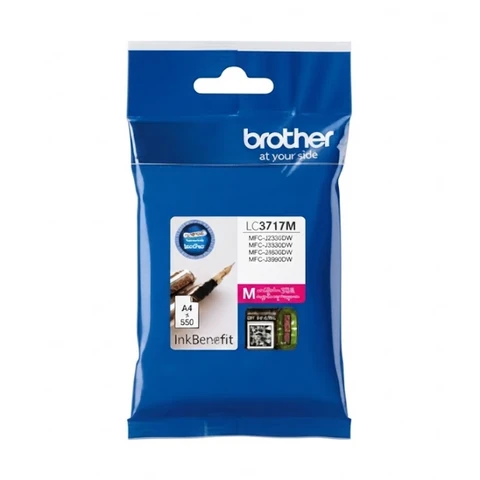
Read the message on the printer's screen. Remove the toner or cartridge and put it back in until it clicks. If you just fitted a new one, check that you removed any protective tape. If it is empty, match the number on the old one before you buy. If you are not sure, read which toner your printer uses.
If the page comes out but is blank or faded, the printer is working and the problem is with the print quality. Our guide on faded and streaky prints will help. For ink tank printers, see the ink tank refill guide.
8. Check the driver
The driver is the small program that lets your computer talk to the printer. After a computer update, it can stop working. Go to the official website of your printer's brand, enter your printer model, and install the latest driver from there. If you are in an office, ask your IT person first.
When to stop and call a technician
Stop trying and get a trained person if you see a repeating error code after a restart, smell burning, hear a loud grinding noise, or find that the paper is torn in the same place every time. Forcing the machine can make the damage worse. Do not open parts of the printer that the manual does not tell you to open.
How to order
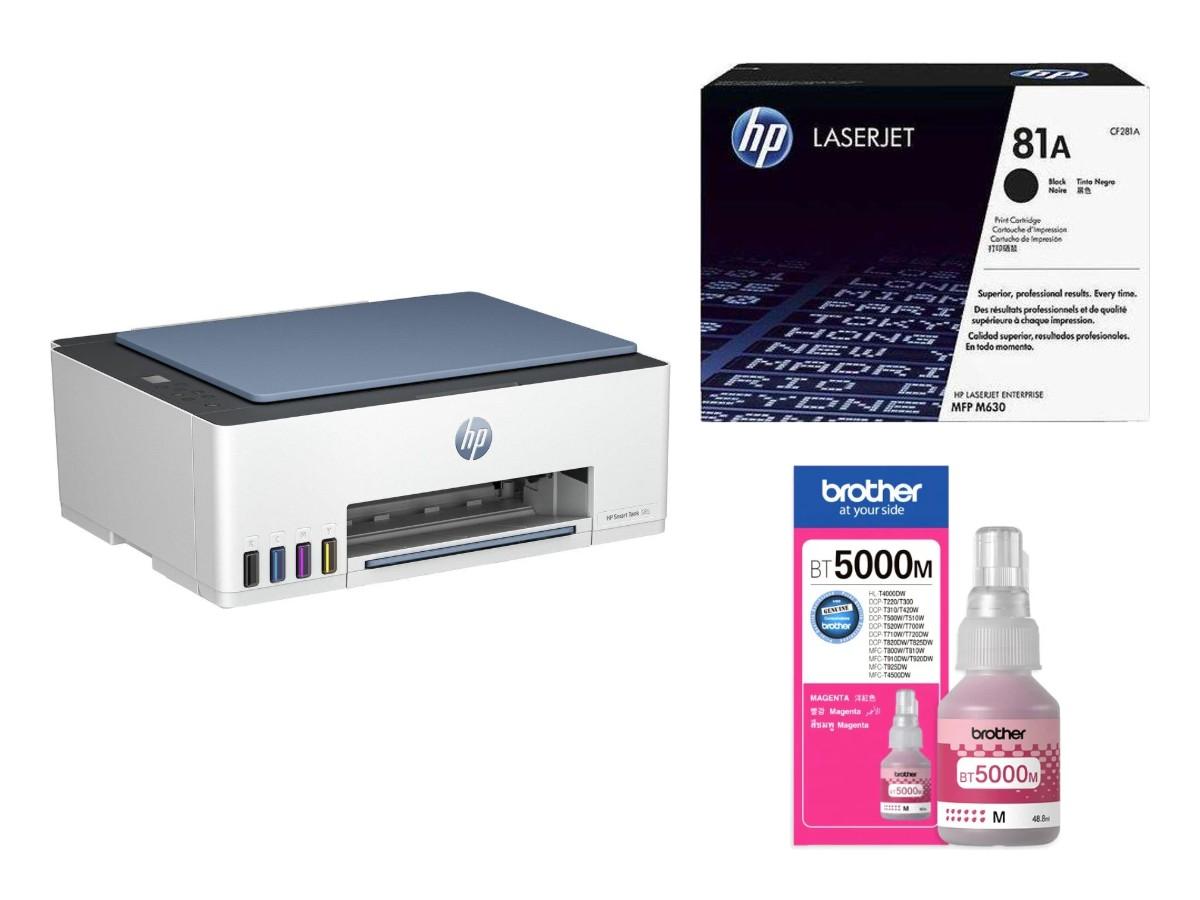
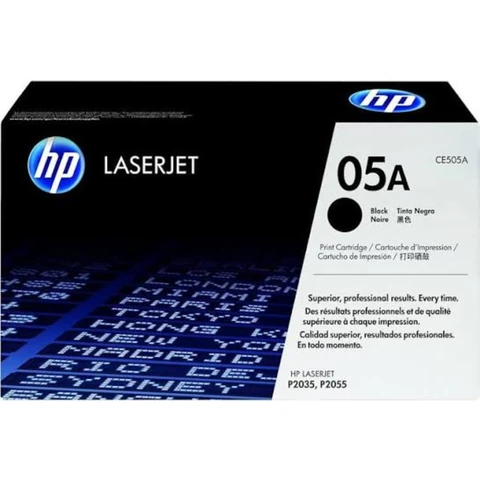
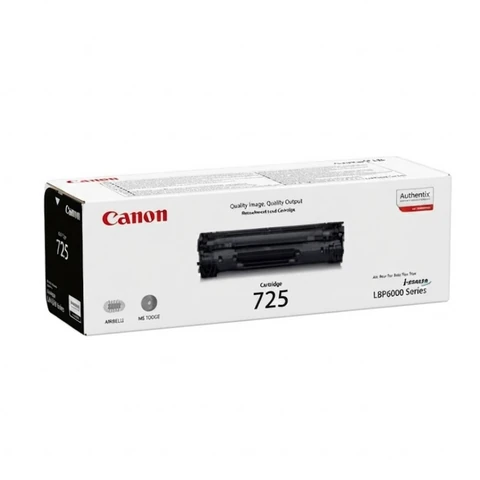
Need supplies, or is it time for a new machine? See HP toners, ink cartridges and laser printers, or send a photo of your old toner on WhatsApp. Raifa Centre is in Doha with branches in Barwa Village and Matar Qadeem, delivers across Qatar and accepts cash on delivery.
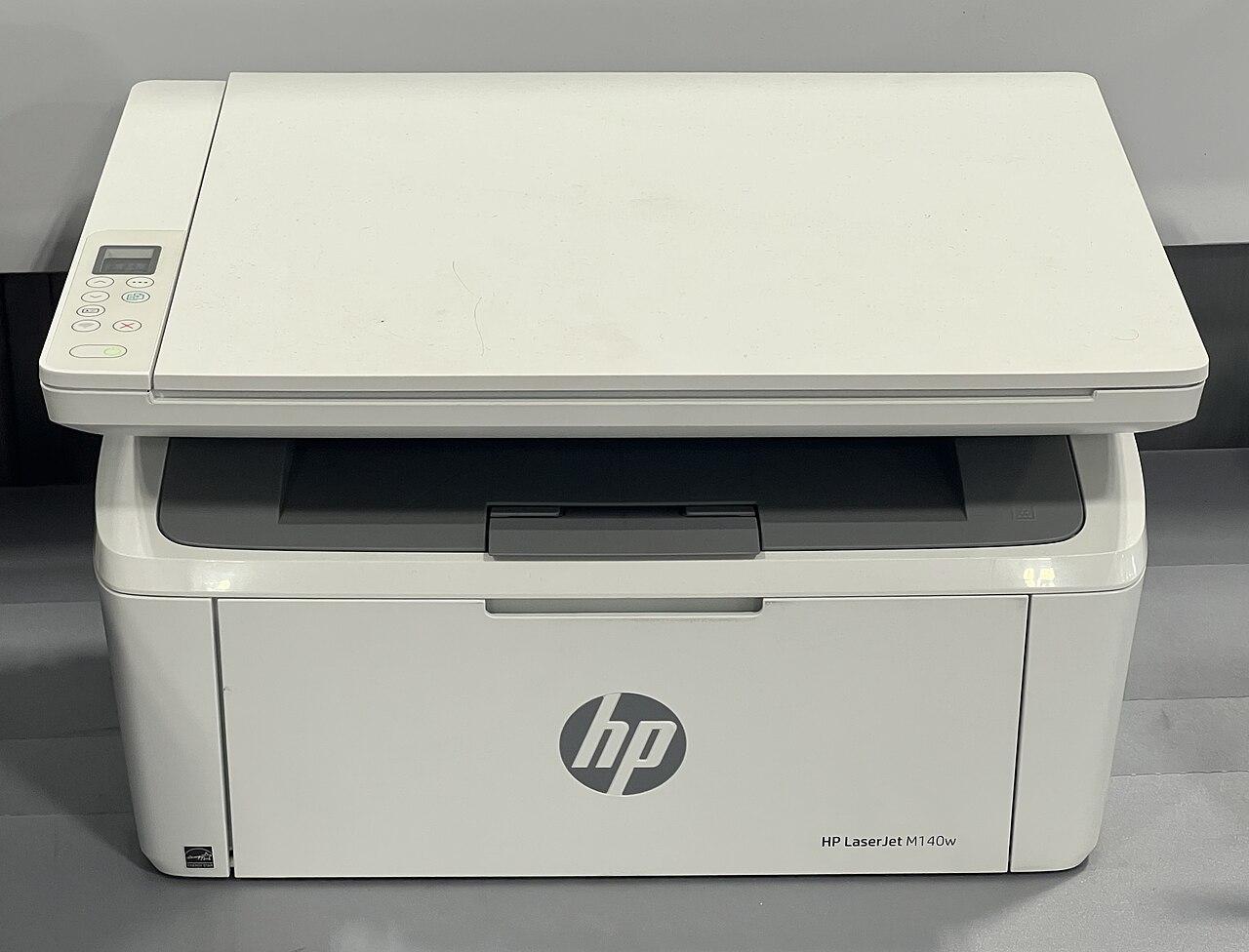
Cover photo: HP LaserJet M140w Printer by TaurusEmerald, CC BY-SA 4.0, via Wikimedia Commons.
Shop what this guide talks about
Live from our shop in Doha. Prices are the same as on the product pages.
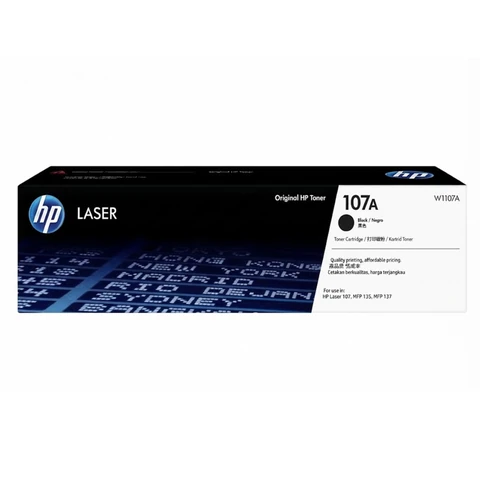
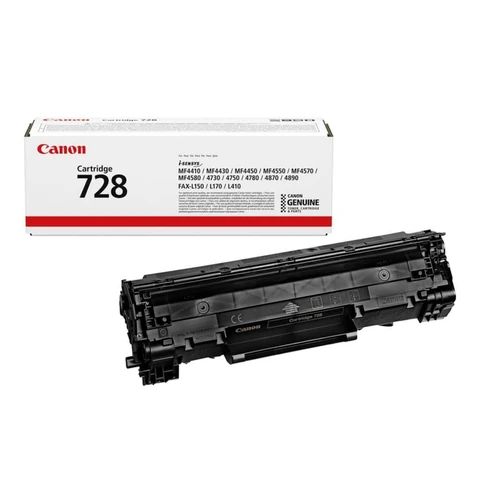
Toners
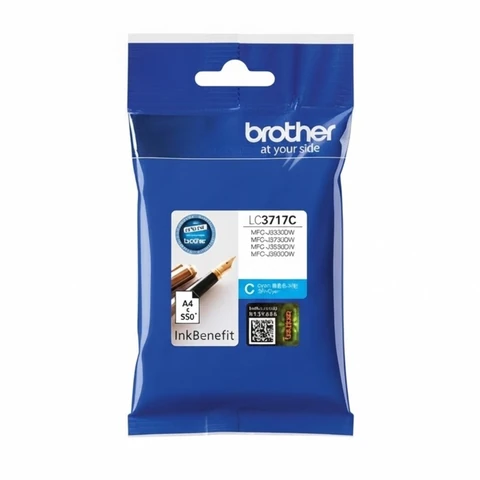
Ink cartridges
See all 72 in the shop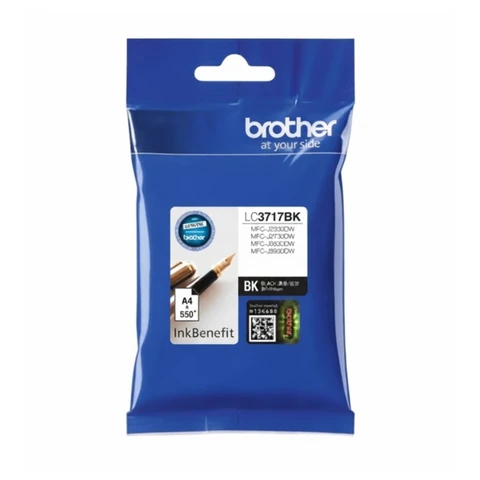

Printer cables
See all 4 in the shop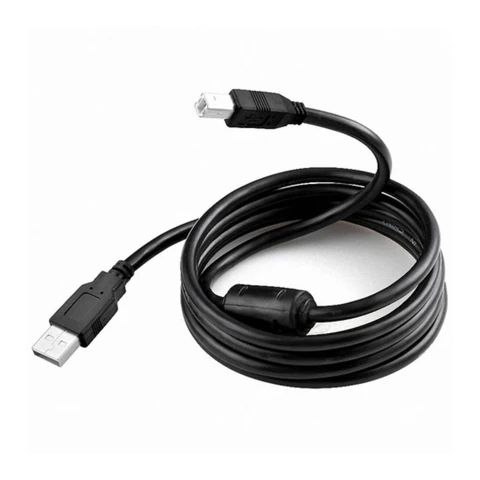
More guides
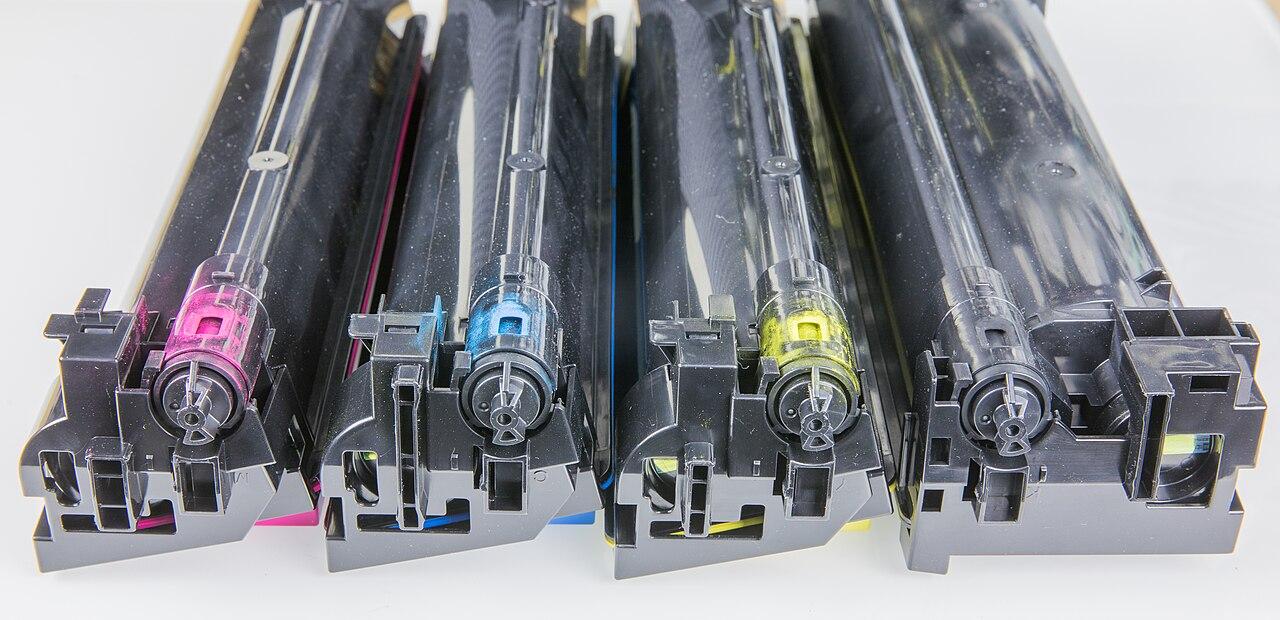
Canon Toner Numbers Explained: 725, 728, 737 and More
Canon toner names can be confusing. Here is how to read numbers like 725, 728, 737, 067 and C-EXV, and how to find the right toner for your Canon printer in Qatar.
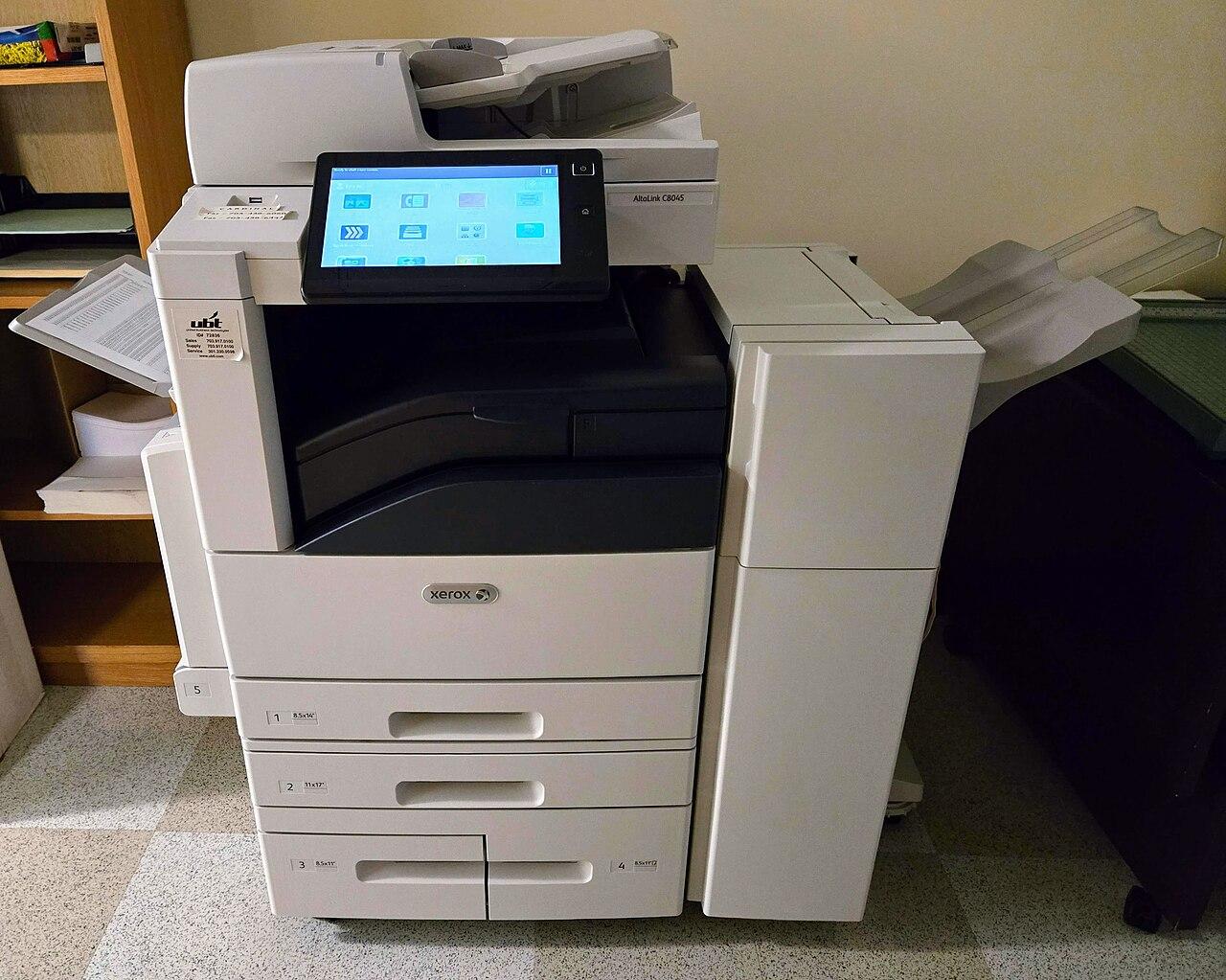
How to save toner and ink: 10 easy tips for your office
Toner and ink running out too fast? Ten simple tips to make every cartridge last longer in your office, school or home, from print settings to storage.
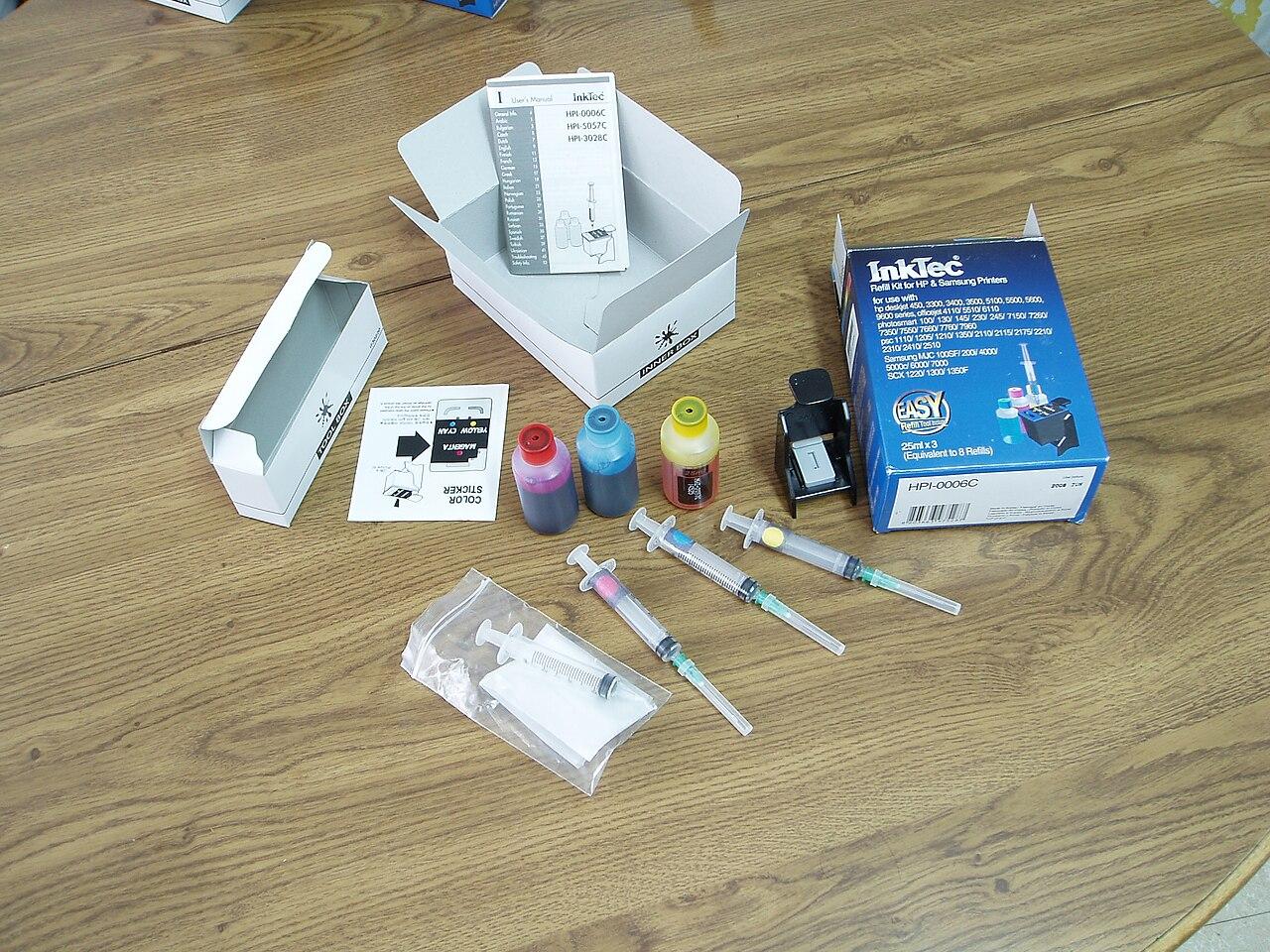
Epson ink bottles 003, 103 and 673: which one do I need?
Epson EcoTank ink running low? Learn the difference between Epson 003, 103 and 673 ink bottles, how to find your number, and tips to keep your printer healthy.